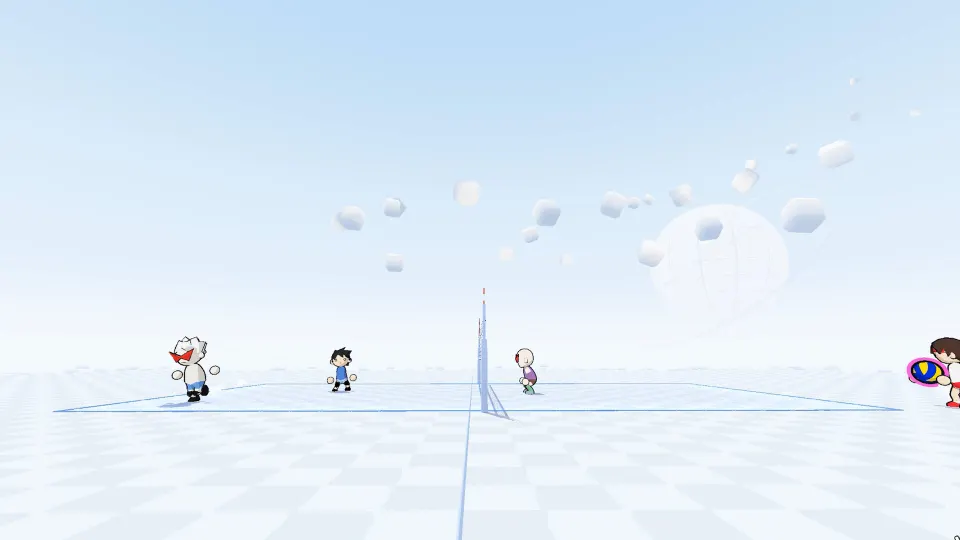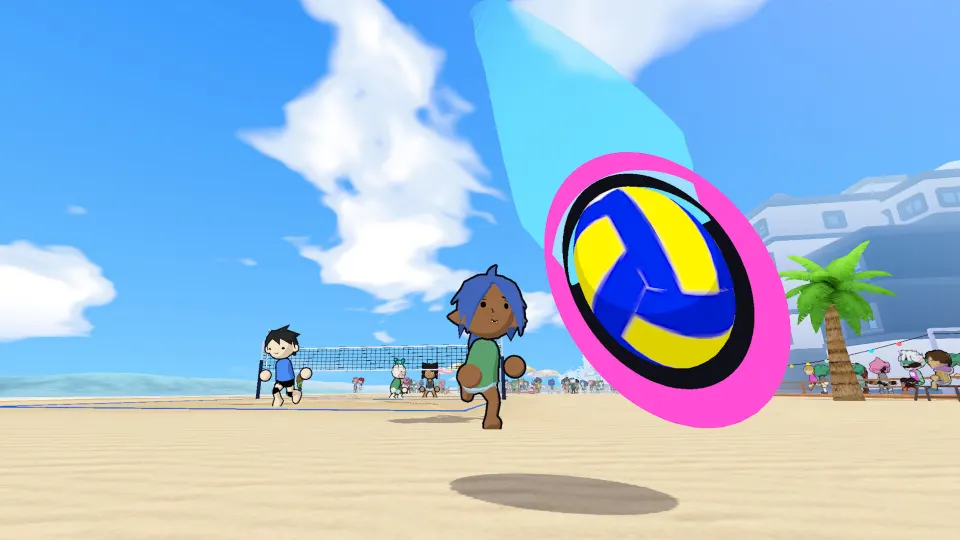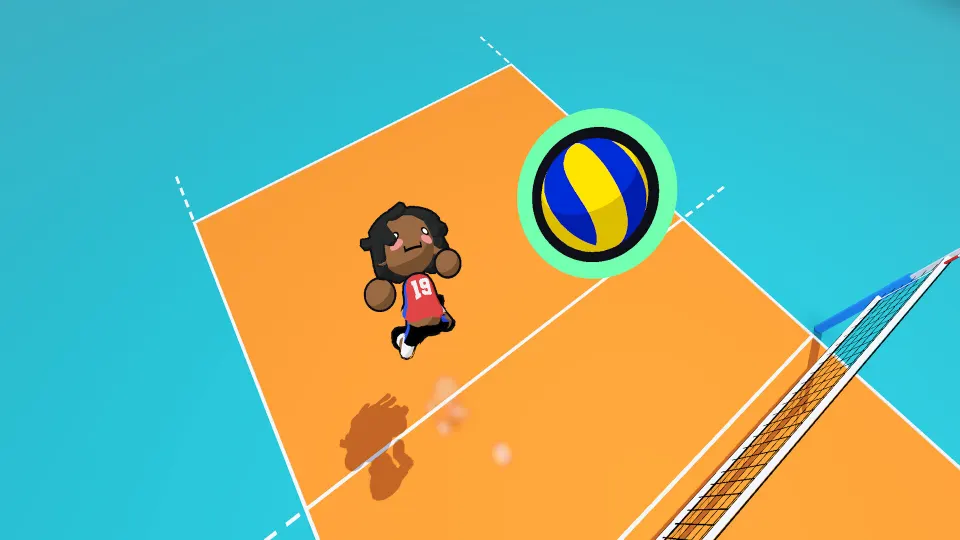
Keyboard and movement controls
The just volleyball controls combine keyboard movement with mouse aiming: get your player into position, then point toward the destination for your touch. Mouse buttons change function when you jump, making the difference between a receive and a spike especially important. You can also change bindings through your profile settings.
This page covers temkosoft's Steam game. Most bindings below were documented during the September 2026 playtest, versions 0.76 through 0.77.1. The October 21 tutorial update additionally describes dashing and mouse-wheel zoom. Check the binding display on the right side of your screen when comparing these instructions with your installed build.
| Input | Function |
|---|---|
| W, A, S, D | Move around the court |
| Mouse movement | Position the cursor used to aim touches |
| Shift, held while moving | Strafe while facing the cursor |
| Ctrl while moving, or double-tap a movement key | Dash, consuming stamina |
| Space | Jump; hold to charge before taking off |
| C | Cycle through camera modes |
| V | Adjust camera zoom |
| Mouse wheel | Adjust zoom, as described in the October tutorial |
| 1, 2, 3, 4 | Use preset quick-chat messages |
Start by separating movement from aiming. Your movement keys control where your player stands, while your mouse determines where the ball should go after contact. Running toward a teammate does not automatically direct your next pass to them; place the cursor at the intended destination.
Dashing helps cover ground, but it costs stamina. Since diving also uses stamina in the October tutorial, constant dashing can leave you with a weaker emergency save. Practice ordinary movement first, then add bursts of speed when the ball is beyond comfortable reach.
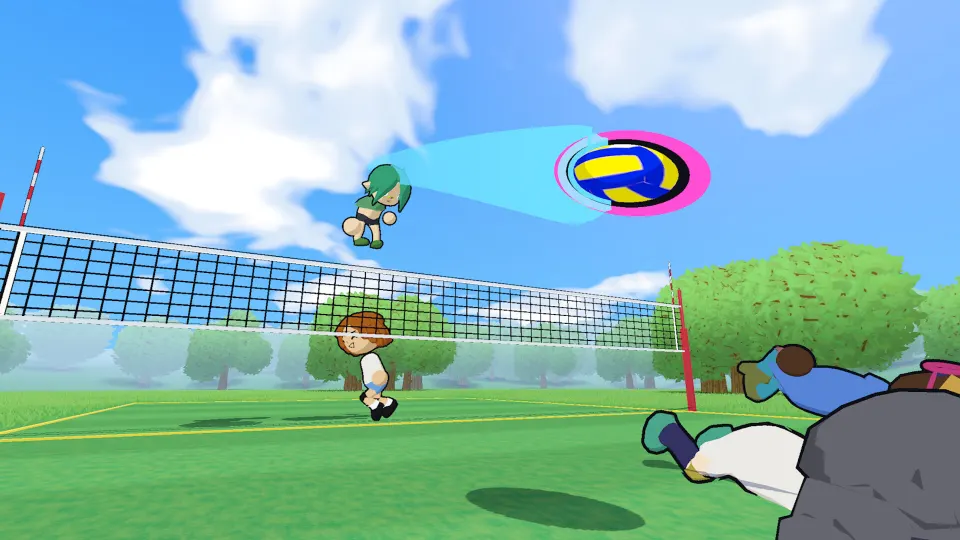
Aiming, receiving, setting, and blocking
The cursor determines the destination of a touch independently of your character's facing direction. Your player can look one way and direct the ball elsewhere. Teammates can also see your intended target, giving cursor placement a communication role during a rally.
| Input | Player position | Action |
|---|---|---|
| Left mouse button | Grounded during a rally | Receive or bump toward the cursor |
| Left mouse button | Airborne | Spike toward the cursor |
| E | When setting the ball | Set; the action supports charging |
| Right mouse button | Grounded | Dive |
| Right mouse button | Airborne near the net | Block |
For receiving, move toward the ball's landing position and aim toward the teammate or location you want to reach. The October tutorial describes three ways to prepare the contact:
- Click early after reaching the landing position.
- Hold left-click while waiting there, an approach the tutorial recommends when experiencing lag.
- Approach the landing position and click with deliberate timing as the ball arrives.
Use E when you want to set. It has its own binding and can be charged, so practice it separately from the grounded left-click receive.
A grounded right-click triggers a dive. When the ball has a landing target, the tutorial describes the dive as automatically heading toward that target. A successful diving contact then sends the ball toward your cursor. Low stamina reduces both dive distance and the strength of the resulting lift.
Holding Shift keeps your body oriented toward the cursor as you move. This avoids the turn animation when reversing direction. September playtest guidance also describes faster recovery from sideways dives while strafing. Try tracking the incoming ball with your cursor while moving laterally, then adjust your aim for the pass.
Charging jumps and serving
Hold Space to build jump charge, then release it to take off. A full charge produces a higher leap, with an on-screen notification in the September playtest. The charge meter helps you judge readiness instead of guessing how long the button has been held.
Movement carries into a jump. Taking off while running sends your player drifting in that direction, which can be useful for reaching a ball but can also cause an overshoot. For a jump with less horizontal travel, stop moving before takeoff.
The September playtest also includes two less obvious behaviors: left-click cancels a jump charge, and a third jump press while airborne makes the character fall over. Avoid repeatedly tapping Space while trying to correct your position.
Both documented serve types begin with a grounded toss using left-click.
| Serve | Input sequence | What to expect |
|---|---|---|
| Standing serve | Left-click to toss, aim across the net, then left-click while grounded | A simpler, slower serve |
| Jump serve | Left-click to toss, jump, aim across the net, then left-click in the air | An airborne attacking contact |
Practice the standing sequence until aiming and timing feel comfortable, then add the jump. Your second left-click performs a different action once you are airborne.
Players have reported jump-serve variations associated with remaining still, moving sideways, or moving backward for a float. These are community observations, not an officially confirmed list of serve types.
Camera modes and zoom
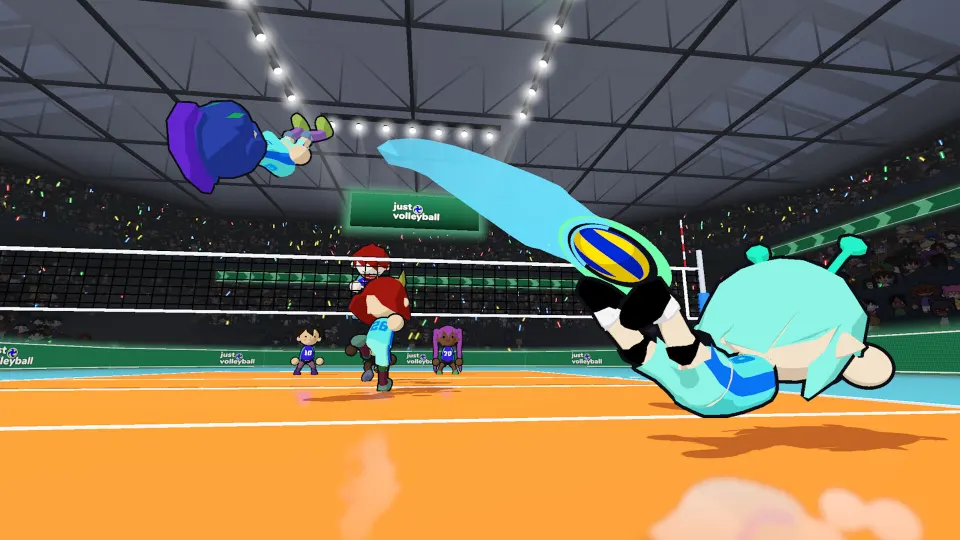
Press C to rotate through four camera views. V changes zoom, and the October tutorial also documents mouse-wheel zoom. Camera choice matters because you need to judge both your player's position and the court location selected by the cursor.
| Camera | View | Aiming consideration |
|---|---|---|
| Dynamic | Tracks the ball; the default view | A useful starting point for following play |
| Static | Looks into the court from behind your own half | Makes the depth of your side easier to read |
| Broadcast | Elevated view from the side | Can make court depth harder to judge |
| Action | Close third-person perspective | Places the viewpoint closer to your character |
With a moving camera, the aiming cursor remains associated with a court position rather than staying fixed to a screen position. Camera motion can therefore change how your target appears on screen. Watch the target's location on the court as the view moves.
For the strafing tutorial, the October walkthrough recommends using a camera other than Action. Put the cursor on the NPC, hold Shift, and move toward the marked destination. This makes the facing requirement easier to follow.
Changing keybinds and checking active controls
Key rebinding is inside the settings for your selected profile. Looking only through the main options menu can make the feature easy to miss. Screen-shake settings are located in the same profile settings area.
To find the bindings:
- Open the profile tab at the top of the screen.
- Enter that profile's settings.
- Open the key-binding options.
- Change the controls you want to customize.
- Check the active bindings displayed during play.
Use the on-screen list as your reference after making changes, especially if you have moved an action away from its documented key. Since these settings belong to a profile, check the selected profile when the controls differ from what you expected.
The dive entry also communicates availability. In the September playtest, it becomes dim and displays a countdown while the move is unavailable. Check that indicator before interpreting an unsuccessful dive input as a binding problem.
FAQ
Where can I practice just volleyball controls?
Open Practice → Tutorial from the menu. You can return there even if you skipped the tutorial when first starting the game. During tutorial explanations, Space or left-click advances the text, while right-click returns to the previous explanation. These navigation inputs apply to the tutorial text rather than normal rally actions.
Why does left-click receive sometimes and spike other times?
Your grounded or airborne state determines the action. During a rally, grounded left-click receives the ball, while airborne left-click spikes it. Serving adds another context: the initial grounded click tosses the ball. Check your position and the stage of the serve when practicing the timing.
Can I play with a controller?
Keyboard and mouse are the documented setup for the September playtest. Controller options were incomplete, and community reports included difficulty spiking with a gamepad. A complete controller mapping has not been officially confirmed in the documentation covered here, so these keyboard bindings should not be treated as equivalent gamepad instructions.
Why is my dive short or unavailable?
The October tutorial says low stamina shortens dives and reduces their lifting power. Separately, September playtest documentation describes an availability countdown beside the dive binding. Check both stamina and the on-screen indicator: limited reach and temporary unavailability have different explanations.
Does holding Shift aim the ball for me?
No. Shift controls how your character faces while moving; you still choose the ball's destination with the cursor. Strafing helps with direction changes and positioning, but you must continue aiming each touch.